
Category: ndMail (Email Filing)
Email is one of the most important records in any legal matter, and managing it is one of the biggest headaches for law firms. ndMail is NetDocuments’ solution for filing emails from Microsoft Outlook directly into the correct client-matter workspace.
The Problem ndMail Solves #
Without a proper email management system, firms typically rely on individual lawyers to save emails manually, drag them into folders on a shared drive, or forward them to a filing address. This leads to inconsistent filing, missed emails, duplicates, and no reliable way to find a specific email months later.
How ndMail Works #
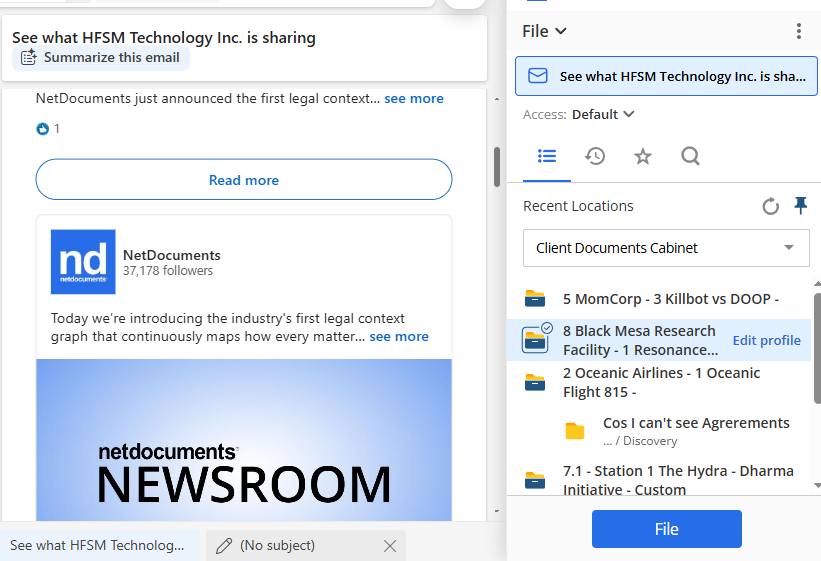
ndMail is an add-in that integrates directly with Microsoft Outlook. Once installed, it adds a filing panel to your Outlook interface. When you select an email, ndMail suggests the most likely workspace to file it in based on:
- The sender and recipients
- The subject line
- Your previous filing history for similar emails
You can accept the suggestion with one click or choose a different workspace manually.
Key Features #
- Predictive filing: ndMail learns from your filing habits and gets smarter over time, suggesting the correct workspace more accurately.
- Bulk filing: Select multiple emails and file them all at once.
- Duplicate detection: ndMail warns you if an email has already been filed to avoid cluttering your workspace with duplicates.
- Automatic filing: For high-volume users, ndMail can be configured to file certain emails automatically based on rules.
The ndMail for M365 Add-in #
NetDocuments has released a newer version of ndMail built as a native Microsoft 365 add-in, replacing the legacy COM add-in. The older COM add-in still works and many firms continue to use it without issue, but the M365 add-in is the path forward and most firms are encouraging their teams to make the switch.
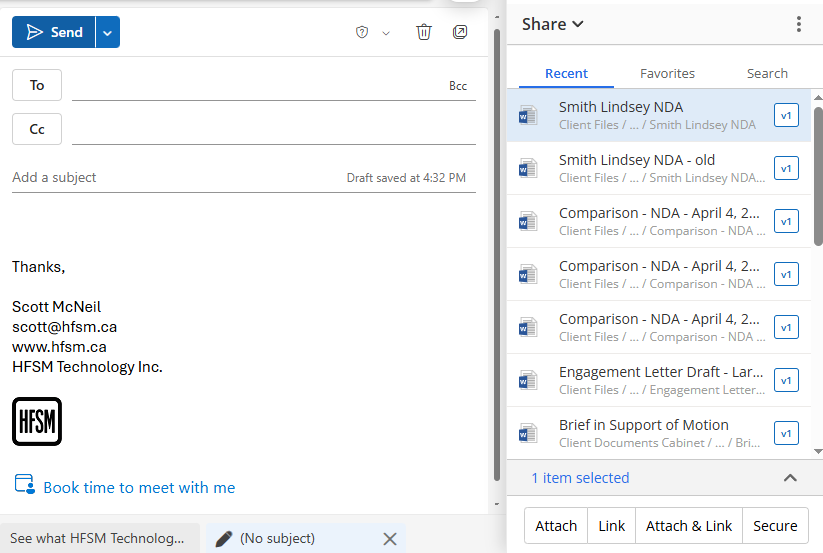
The M365 add-in provides the same core functionality you are used to with the COM version. You can file emails to matter workspaces, save attachments separately, attach documents from NetDocuments to outgoing emails, and take advantage of predictive filing suggestions. The experience is familiar, just delivered through the modern M365 add-in framework.
Getting the Add-in #
There are two ways to get ndMail for M365 added to your Outlook:
- Self-install from the M365 Add-in Store: From inside Outlook, open the M365 add-in store, search for NetDocuments, and add the ndMail add-in. Once installed, you will see the NetDocuments icon in your Outlook ribbon or toolbar. Click it to open the filing panel.
- Admin deployment: Your firm’s IT administrator can push the add-in out to all users centrally through the Microsoft 365 admin center. This is the preferred approach for most firms because it ensures consistent deployment across the organization.
Regardless of which method is used, some backend configuration is required before the add-in will work. Your NetDocuments administrator or implementation partner will need to complete the setup on the NetDocuments side before users can begin filing.
Why It Matters #
For firms that need to produce complete communication records for a matter, ndMail ensures nothing falls through the cracks. Every email is filed in context alongside the related documents, making it easy to see the full picture of any client matter.
Need help getting your team up and running on NetDocuments? HFSM Technology provides implementation, training, and ongoing support for Canadian law firms. Visit hfsm.ca/contact to learn more.


