
Category: Working with NetDocuments, Search and Organization
In NetDocuments, a workspace is your top-level container for a client matter. All documents, emails, and files related to that matter live inside the workspace. Folders within the workspace let you organize those files into logical groupings so your team can find what they need quickly.
This guide covers how to create folders, add subfolders, use folder packs, and create folders on the fly while saving documents.
Creating a Folder in a Workspace #
To create a folder inside a workspace from the NetDocuments web interface:
- Navigate to the workspace where you want to add the folder.
- Click on the workspace name in the header area above the document list. This opens a dropdown menu with several options.
- Select Add folder.
- Enter a name for the folder and click Save or press Enter.
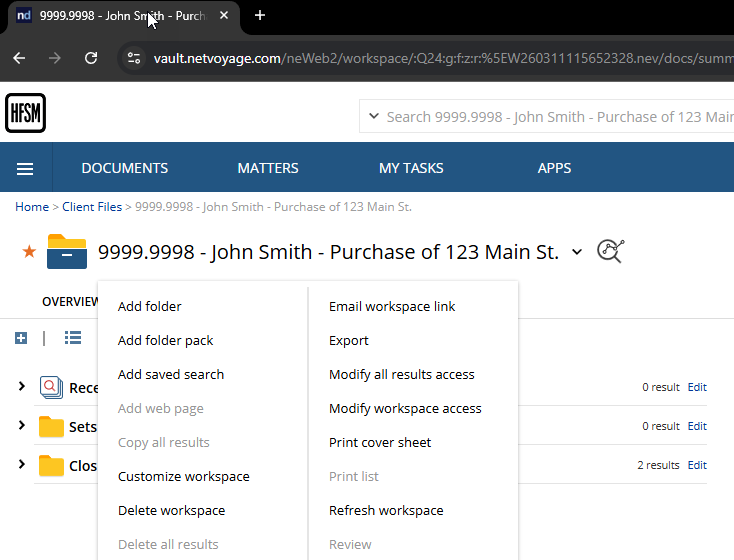
The new folder appears in the workspace and is ready to use. You can immediately start filing documents into it.
Creating Subfolders #
You can create subfolders inside any existing folder using the same method. Navigate into the folder where you want the subfolder, click on the folder name in the header area, and select Add folder. This creates a nested folder inside the current one.
NetDocuments supports multiple levels of subfolders, but it is best to keep your folder structure relatively flat. Two or three levels deep is usually sufficient. Deeply nested folder structures make it harder for team members to find documents and work against the strength of NetDocuments’ search capabilities.
Using Folder Packs #
A folder pack is a predefined set of folders that can be added to a workspace all at once. Instead of creating folders one by one, a folder pack lets you apply a standard folder structure in a single step.
To add a folder pack:
- Click on the workspace name in the header area.
- Select Add folder pack.
- Choose from the available folder packs configured for your firm.
- Click Add or Save.
Folder packs are typically set up by your firm’s NetDocuments administrator. They are useful for ensuring consistency across matters. For example, your firm might have a standard folder pack for litigation matters that includes folders for Pleadings, Correspondence, Discovery, and Court Orders. A real estate pack might include Agreements, Due Diligence, Closing Documents, and Title.
If your firm does not have folder packs configured, talk to your administrator or implementation partner about setting them up. They save time and help maintain a consistent structure across all matters.
Creating Folders While Saving a Document #
You do not always need to go to the web interface to create a folder. You can create folders on the fly while saving a document through ndOffice.
When using Save As in Word, Excel, or PowerPoint:
- Click File > Save As and navigate to the NetDocuments workspace.
- In the Save As dialog, click the Add Folder button at the top of the file browser.
- Enter a name for the new folder.
- The folder is created and you can save your document directly into it.
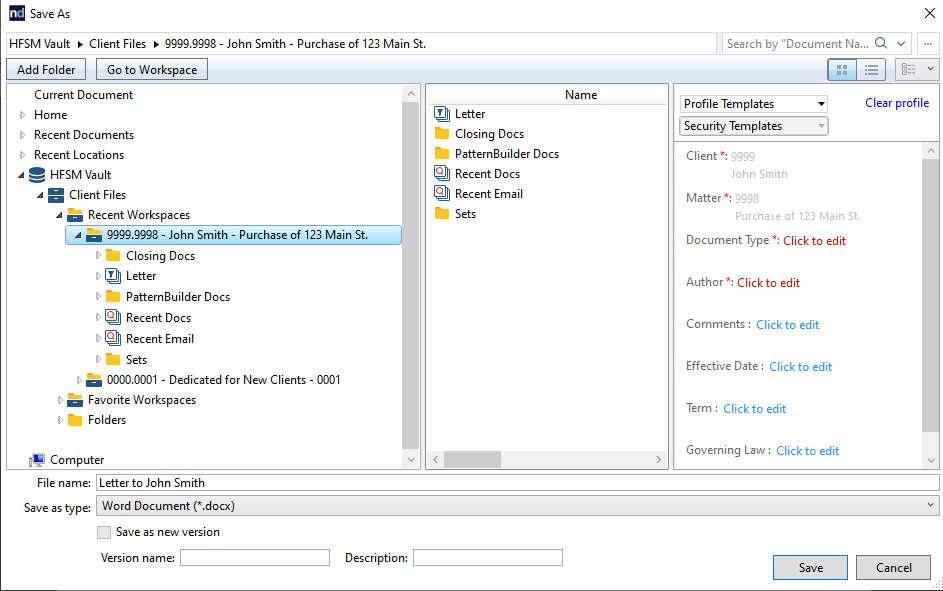
This is particularly useful when you are in the middle of drafting a document and realize you need a new folder to keep things organized. You do not have to stop what you are doing, switch to the browser, and come back.
Organizing Your Workspace: Best Practices #
A well-organized workspace makes a significant difference in how efficiently your team works on a matter. Here are some guidelines to keep in mind:
- Use a consistent folder structure across matters. Whether you use folder packs or create folders manually, try to follow the same naming conventions and structure for every matter of the same type. This makes it easier for anyone on the team to jump into a matter and know where to find things.
- Keep it simple. You do not need a folder for every possible document type. Start with broad categories (Correspondence, Agreements, Court Documents) and add more specific folders only if the matter grows large enough to need them.
- Rely on profiles and search, not just folders. NetDocuments’ search and document profiling features are powerful. You do not need to replicate the deep folder hierarchies you might have used on a file server. A few well-named folders combined with proper document profiles will make finding documents faster than navigating through ten levels of folders.
- Name folders clearly. Use descriptive names that anyone on the team would understand. Avoid abbreviations that only one person knows. For example, use “Correspondence” rather than “Corr” or “Misc.”
- Do not use folders as a substitute for workspaces. Each client matter should have its own workspace. Do not create a single workspace for a client and then use folders to separate matters. This breaks security boundaries and makes it difficult to manage access.
Other Workspace Options #
When you click on the workspace name, you will see several other options in the dropdown menu beyond Add folder and Add folder pack:
- Add saved search: Adds a saved search as a virtual folder in the workspace, so you can run frequent searches with one click.
- Customize workspace: Lets you adjust workspace settings such as the display columns, default sort order, and other preferences.
- Document report: Generates a report of all documents in the workspace, which can be useful for auditing or matter reviews.
- Edit document profiles: Allows bulk editing of document profile fields across multiple documents in the workspace.
These features are typically used by administrators and power users, but it is helpful to know they are available.
Need help setting up workspaces and folder structures for your firm? HFSM Technology provides implementation, training, and ongoing support for Canadian law firms. Visit hfsm.ca/contact to learn more.


