
Category: Getting Started with NetDocuments
Overview #
Your firm has set up NetDocuments as its document management system, and you have received your login credentials. This guide walks you through your first login, including setting up multi-factor authentication and getting oriented in the interface.
What You Need #
- Your firm email address associated with your NetDocuments account
- Your SSO web address/URL provided by your firm’s IT department or administrator, or a temporary password for native NetDocuments login
- A web browser such as Chrome, Edge, Firefox, or Safari (Chrome and Edge tend to offer the best experience)
- Your mobile phone if your firm requires multi-factor authentication
Step 1: Navigate to the Login Page #
There are two ways to reach the NetDocuments login page depending on how your firm is set up.
If your firm uses Single Sign-On (SSO): #
Your IT department or administrator will provide you with a direct SSO URL. It will look something like this:
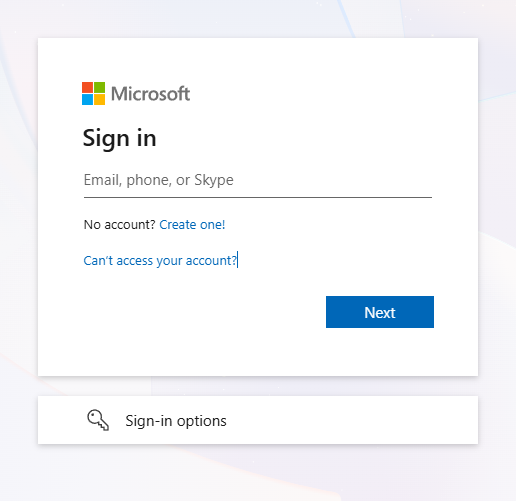
Navigate to that link in your browser. You will be redirected to a Microsoft 365 login page. Enter your M365 credentials and you will be taken directly to your NetDocuments home page.
If your firm uses native NetDocuments credentials:
Navigate to your region’s login page. For Canadian firms, go to:
Canada: https://can.netdocuments.com
Other regional login pages include:
- United States: https://vault.netvoyage.com
- Europe: https://eu.netdocuments.com
- Australia: https://au.netdocuments.com
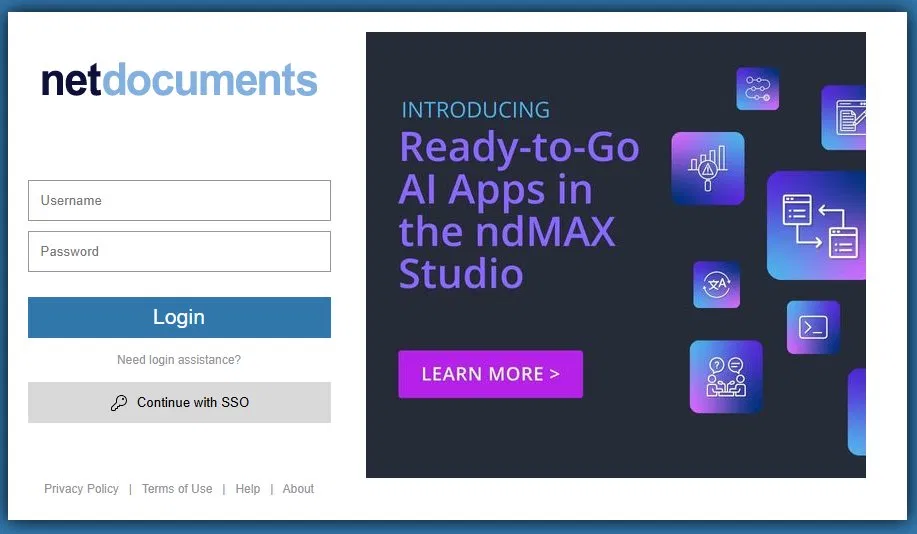
Enter your username and password on the login screen and click Login.n.
Step 2: If You Don’t Know Your SSO URL #
No need to worry. On the NetDocuments login page, you will see a Continue with SSO option. Click that link, enter your firm email address, and NetDocuments will redirect you to the correct SSO login for your firm. From there, log in with your Microsoft 365 credentials as usual.
Step 3: Multi-Factor Authentication (MFA) #
How MFA is handled depends on your login method.
If your firm uses SSO: #
MFA is managed through your existing Microsoft 365 setup. If your firm has MFA enabled on M365 (most do), you will be prompted through that process as part of the SSO login. There is nothing additional to configure in NetDocuments.
If your firm uses native NetDocuments credentials: #
You may be prompted to set up MFA on your first login. Follow these steps:
- Download an authenticator app if you do not already have one. Common options include Microsoft Authenticator, Google Authenticator, or Duo Mobile.
- Scan the QR code displayed on screen with your authenticator app.
- Enter the verification code from your app to confirm setup.
Going forward, you will enter a code from your authenticator app each time you log in (or approve a push notification, depending on your firm’s configuration).
Step 4: Setting Your Password #
If you received a temporary password: Log in with the temporary password and reset it as soon as possible. NetDocuments will not force you to change it, but leaving a temporary password active is a security risk. Go to your account settings and update it to a strong password.
If you received a password reset link: Follow the link in the email, create a new password, and use it to log in to your native NetDocuments account.
If your firm uses SSO: Your password is managed through Microsoft 365, not NetDocuments. There is no separate NetDocuments password to set.
Step 5: You Are In #
After authentication, you will land on your NetDocuments Home Page. From here you can access your cabinets, workspaces, recent documents, and saved searches.
Bookmarking for Quick Access #
Bookmark your region’s login page (e.g., can.netdocuments.com) or your firm’s SSO URL for easy access. Once you have logged in via your SSO link, the regular can.netdocuments.com login page will also work going forward.
- Chrome/Edge: Press Ctrl+D (Windows) or Cmd+D (Mac)
- Firefox: Press Ctrl+D (Windows) or Cmd+D (Mac)
- Safari: Press Cmd+D
Troubleshooting Your First Login #
“Invalid username or password” error: Double-check that you are using the exact email address your administrator registered. If your firm recently migrated to NetDocuments, your account may not be active yet. Contact your firm administrator or IT department.
SSO redirect is not working: If you are redirected to your firm’s Microsoft 365 login page but it fails or loops, this is usually a configuration issue on the identity provider side. Try clearing your browser cookies and cache, then try again. If the problem persists, contact your IT department rather than NetDocuments support, as SSO is managed by your firm.
MFA code is not being accepted: Make sure the time on your mobile device is set to automatic. Authenticator apps rely on synchronized time to generate valid codes. If the time on your phone is off by even a minute, codes may fail.
“Account locked” message: Too many failed login attempts will lock your account temporarily. Wait 15 to 30 minutes or contact your firm administrator to unlock it.
Browser compatibility issues: If the login page looks broken or does not load properly, try a different browser. Chrome and Microsoft Edge generally provide the most reliable experience with NetDocuments.
What to Do Next #
Once you are logged in, take a few minutes to explore:
- Your Home Page shows recent documents, favorites, and any items shared with you
- Cabinets contain your firm’s organized workspaces
- The search bar at the top lets you find any document across your entire repository
If your firm has provided you with access to a knowledge base or training materials, now is a good time to review them.
Need help getting your team up and running on NetDocuments? HFSM Technology provides implementation, training, and ongoing support for Canadian law firms. Visit hfsm.ca/contact to learn more.


