Category: Working with NetDocuments
NetDocuments and Anthropic have opened a direct, governed channel between Claude and your firm’s repository. Instead of downloading a precedent, opening a separate AI tool, and pasting the text in, Claude can search NetDocuments, retrieve what it needs, and answer using your own documents. The documents stay in NetDocuments the whole time.
This article covers what the connection requires, how to set it up, five practical things to do once it is running, and the questions a Canadian firm should settle before turning it on.
What MCP actually is #
Model Context Protocol (MCP) is an open standard for connecting AI tools to the systems where the work already lives. It is plumbing, not a product. NetDocuments exposes an MCP endpoint, Claude connects to it, and the two speak the same language without anyone writing custom integration code.
The important part for a law firm is that the connection is scoped to the signed in user. Claude sees exactly what that person could see if they opened NetDocuments themselves. Existing permissions, ethical walls, and DLP rules are enforced at the connection layer, so there is no second security model to maintain.
What you need before you start #
- An ndMAX subscription that includes ndConnect Enterprise. MCP access runs through ndConnect Enterprise. The standard ndConnect path available to all customers is a user driven document picker rather than an agent driven connection, so confirm with NetDocuments that your specific subscription includes ndConnect Enterprise before you plan anything around it. Product packaging in this area changes often.
- An administrator who can turn it on. MCP is opt in at the firm level through Security Center. Nothing happens until an admin enables it.
- A Claude account on a plan your firm is comfortable with. NetDocuments limits MCP access to platforms with enterprise grade data handling commitments, and what happens to content after it reaches the AI vendor is governed by your agreement with that vendor. For most firms that means Claude Team or Enterprise rather than individual accounts.
- A decision about who gets access first. This does not have to go firm wide on day one.
How to connect #
The administrator turns it on first #
Nothing works until an administrator opens the door. In the NetDocuments admin console, go to Security Center and open the ndConnect tile.
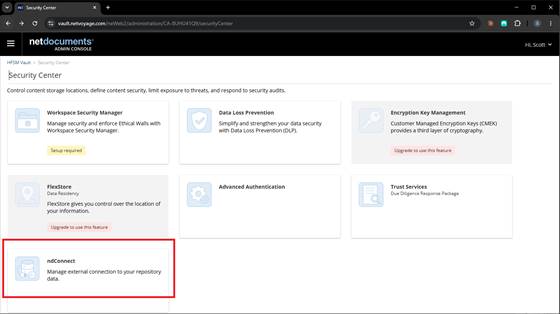
Security Center, with the ndConnect tile that manages external connections to your repository data.
The ndConnect page holds a single checkbox: Enable MCP for this repository. Read the text above it before you tick it, because it is the most honest description of the connection you will find anywhere. Authorized MCP clients can search, read, process, and modify any data the logged in user can access, with the exception of documents or workspaces protected by the Prohibit AI (LLM) data loss prevention rule. NetDocuments also states plainly that it is not responsible for how third party tools process data consumed through MCP.
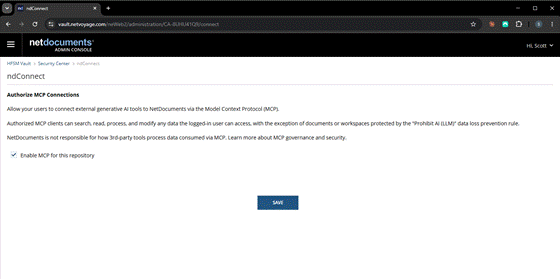
The ndConnect page. One checkbox enables MCP for the entire repository.
Two things follow from that wording. The connection is not read only, and the Prohibit AI (LLM) DLP rule is your instrument for carving out content that should never reach an outside model. If you have workspaces that need to stay out of scope, configure that rule before you enable MCP, not after.
Adding the connector in Claude #
NetDocuments publishes an official connector in the Claude directory, so nobody needs to type an endpoint URL by hand. In Claude, open Settings, go to Connectors, then choose Add and Browse connectors.
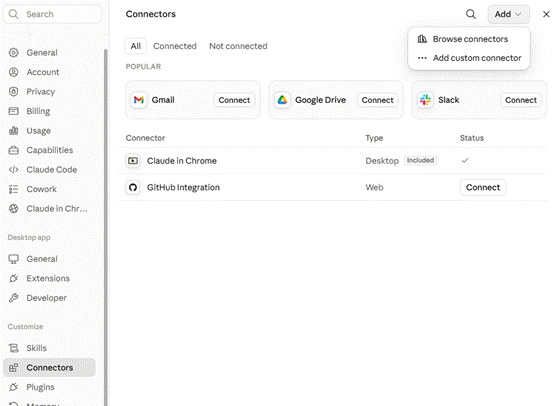
Settings, then Connectors, then Add, then Browse connectors.
Search for NetDocuments. It appears under Anthropic and Partners with a verification mark, which tells you it is the connector NetDocuments publishes rather than something a third party assembled. Add it with the plus button.
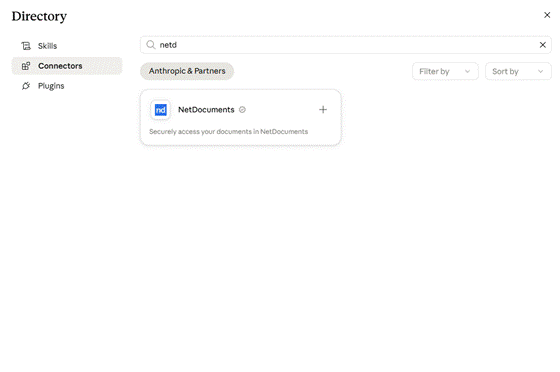
The NetDocuments connector in the Claude directory, listed as an Anthropic and Partners connector.
Claude then asks which region hosts your account, offering United States, Canada, United Kingdom, Germany, and Australia. This is the data residency question, and it is the one place in the setup where a wrong click has consequences. A firm on the Canadian repository chooses Canada.
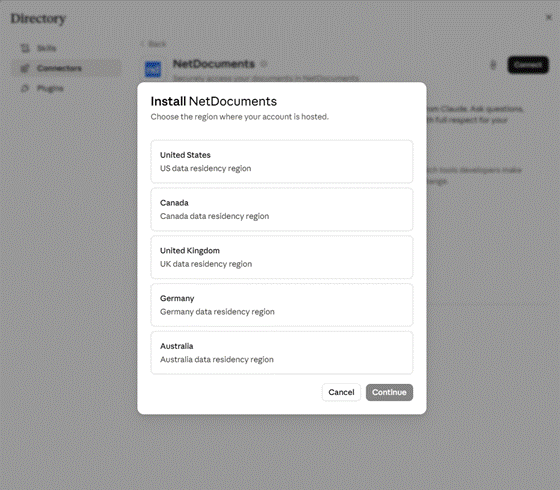
The region picker. Choose the data residency region your repository actually lives in.
Signing in and granting access #
Claude hands off to a browser tab to complete the sign in.
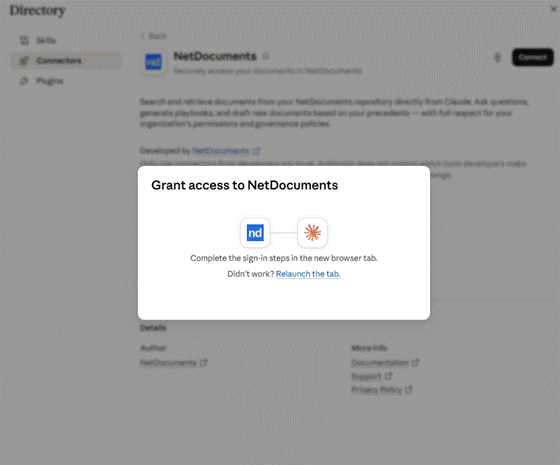
Claude waits while the sign in completes in a separate browser tab.
The NetDocuments authorization screen is the part to slow down for. It lists exactly what you are granting, and it is broader than reading. The consent covers reading everything you have rights to access, creating folders and saved searches, filing items in folders, manipulating ACLs and profile values, and uploading documents, creating versions, checking documents out and in, and changing the official version.
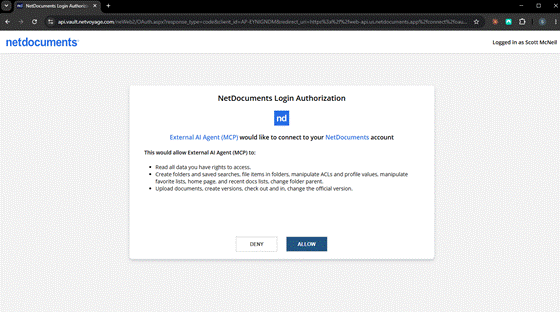
The NetDocuments authorization screen. Read the three bullets before choosing Allow.
Approve it and the browser hands you back to Claude.
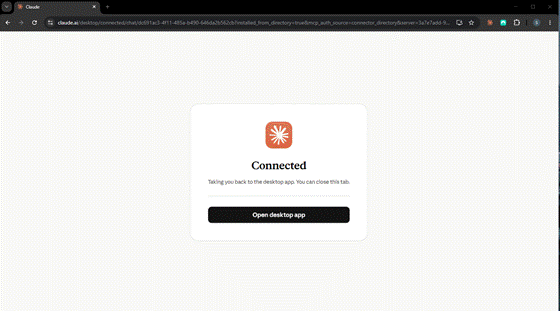
Connection confirmed.
Confirming it worked #
Back in Claude, NetDocuments now appears in the connector list with a check mark against it.
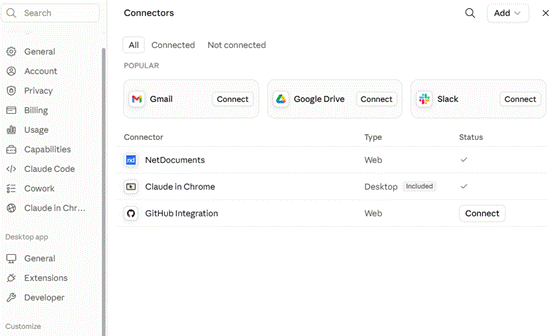
NetDocuments connected and listed alongside your other connectors.
From there you are simply back at the Claude prompt, with your repository available to the conversation.
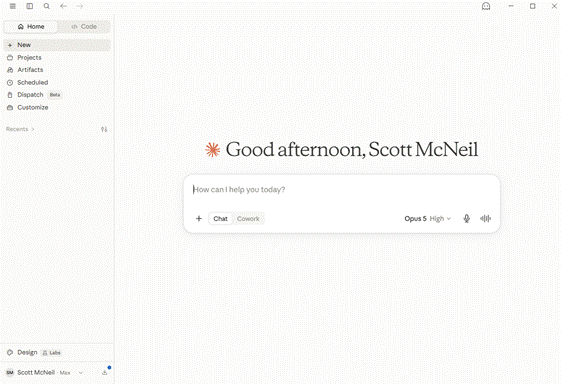
Connected and ready to use.
Test with something small before anyone relies on it #
Before anyone runs a matter wide question, ask Claude to find one document you already know well and summarize it. You are checking two things: that the connector returns the right document, and that a user who should not see a walled matter still cannot see it. Five minutes here saves an awkward conversation later.
Five things to do once you are connected #
1. Answer questions across a matter instead of opening documents one at a time #
The most common use is also the least dramatic. A lawyer picking up a matter asks a question in plain language and Claude finds the answer in the documents that already exist.
“What is the governing law in the agreement between Hartwell Industries and Pinnacle Group?”
This replaces a search, a download, and a skim. Multiply that by a dozen questions a day and the time adds up quickly.
2. Build comparison tables across a set of agreements #
Comparing terms across a portfolio is exactly the kind of work that is valuable and tedious in equal measure.
“Find the five lease agreements Meridian Properties entered into and create a table showing the governing law, rental amount, and effective date of each.”
The output is a table you can check against the source documents. Treat it as a first pass that a lawyer verifies, not a finished work product.
3. Generate a chronology from the pleadings #
Litigation teams build chronologies constantly, and they are usually assembled by hand from documents already sitting in the matter.
“Go through the pleadings in Doe v. Lake Properties and create a timeline of key events.”
This is a strong candidate for an early pilot because the result is easy to verify. The dates either match the pleadings or they do not.
4. Turn your precedents into a drafting playbook #
Most firms have excellent precedents and no practical way to see what they collectively say. Claude can read across a set of executed documents and describe the firm’s actual drafting positions.
“Find recently executed NDAs with similar product carveout provisions and create a playbook for drafting the new NDA for Ventures Inc.”
The value here is institutional. A first year sees how the firm has really handled a clause across twenty matters, not just the one precedent someone emailed them.
5. Get up to speed on a matter you are inheriting #
Coverage, lateral hires, and file transitions all involve the same problem: someone needs to understand a matter quickly.
“Search for all depositions in the Torres matter and summarize what each witness said about the product liability issue.”
Ask for citations to the underlying documents so the answer can be checked. Claude working from the firm’s own record is far more useful than a general model working from training data.
What the connection actually permits #
This is where expectations need correcting, because the two screens involved say different things.
- In practice, the connector reads. The NetDocuments MCP server exposes two capabilities to Claude: a repository search and a document fetch. There is no upload, no version creation, no check in or check out, and no profiling. Claude can draft in the conversation, but it cannot save that draft into a workspace. Work product is still filed the normal way.
That limit matters less in practice than it sounds. Claude produces a Word document, you open it, choose Save As, and pick NetDocuments as the location. With ndOffice installed the profile dialog appears exactly as it does for any other document, you select the workspace and complete the profile, and the draft lands in the right matter with full metadata and a version history from that point on. Two extra clicks, and a human stays in the filing decision, which is arguably where that decision belongs.
- The authorization you approve is broader than what is used. The consent screen grants uploading documents, creating versions, checking documents out and in, changing the official version, and manipulating ACLs and profile values. Those rights sit unused today, but they are granted, and the ndConnect page describes authorized MCP clients as able to modify data. Assess the scope your firm approved rather than only the tools in use this month, because a security reviewer will read the consent screen.
- The Prohibit AI (LLM) data loss prevention rule is the exclusion mechanism. Content protected by that rule stays out of reach of MCP clients. If there are matters or workspaces that should never be visible to an outside model, that rule is where you say so.
- Everything remains scoped to the signed in user. Nobody gains access to something they could not already open, and ethical walls continue to apply.
- Nothing here removes the requirement to verify. Every output is a draft, and the lawyer who signs it owns it. The connection improves the quality of the input, which is a real improvement, but it is not a substitute for review.
Questions to settle before you turn it on #
For Canadian firms in particular, a short list is worth working through before the first user connects.
- Where does the content go, and under what agreement? NetDocuments delivers relevant content as text to the AI tool, scoped to the authenticated user, with nothing bulk transferred or replicated. What happens after that point is governed by your agreement with the AI vendor. Read that agreement.
- What do your law society obligations require? Confidentiality, supervision, and competence duties all apply. Several Canadian law societies have published guidance on generative AI, and it is worth reading before rollout rather than after a complaint.
- Do your client engagement terms and any outside counsel guidelines permit it? Some clients now address AI use directly.
- Who is accountable for review? Decide this before the pilot, not during it.
- What does your audit trail look like? Access through MCP is logged the same way other access is, which is useful evidence if a client ever asks what happened.
A sensible rollout #
Start with one practice group and a handful of willing users. Pick tasks with verifiable outputs, such as chronologies and comparison tables, so the pilot produces evidence rather than impressions. Write down what people actually asked and what came back. After a few weeks you will know whether this belongs in the firm’s daily workflow, and you will have real examples to show the partners who need convincing.
The connection itself is the easy part. Deciding how your firm uses it, and confirming the governance holds up, is the work that matters.
Need help with this?
HFSM Technology helps Canadian law firms plan, configure, and support NetDocuments, including AI connectivity and governance decisions like this one. If you want a second set of eyes before you enable MCP at your firm, get in touch.


