
Category: Mobile
NetDocuments offers a mobile app for iOS and Android that gives you access to your documents, workspaces, and search from your phone or tablet. Whether you are in court, travelling, or working from home without your laptop, the mobile app keeps you connected to your firm’s document management system.
What You Can Do on Mobile #
- Browse your cabinets, workspaces, and folders
- Search across your entire repository
- View documents including Word, PDF, Excel, and PowerPoint files
- Edit documents using compatible mobile Office apps
- Share documents securely via links
- Access recent documents and favorites for quick retrieval
- Work offline by marking documents for offline access (they sync when you reconnect)
Getting Started #
- Download the NetDocuments app from the Apple App Store or Google Play Store.
- Open the app and sign in with your NetDocuments credentials (the same ones you use on the web). If your firm uses Single Sign-On (SSO), see the Login with SSO section below.
- If your firm uses multi-factor authentication, you will be prompted to verify your identity.
- Once signed in, you will see your home screen with recent documents, favorites, and navigation to your cabinets.
Login with SSO #
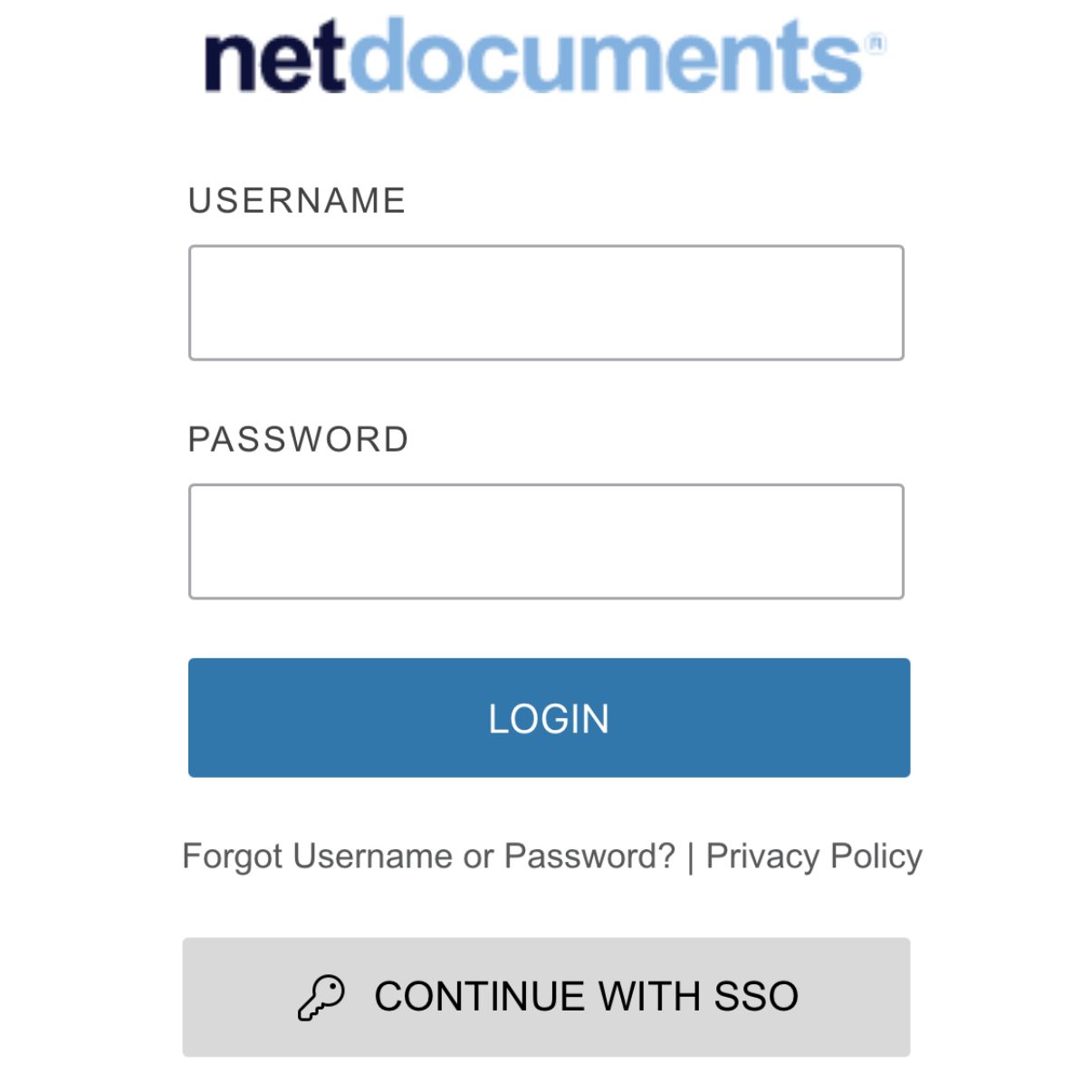
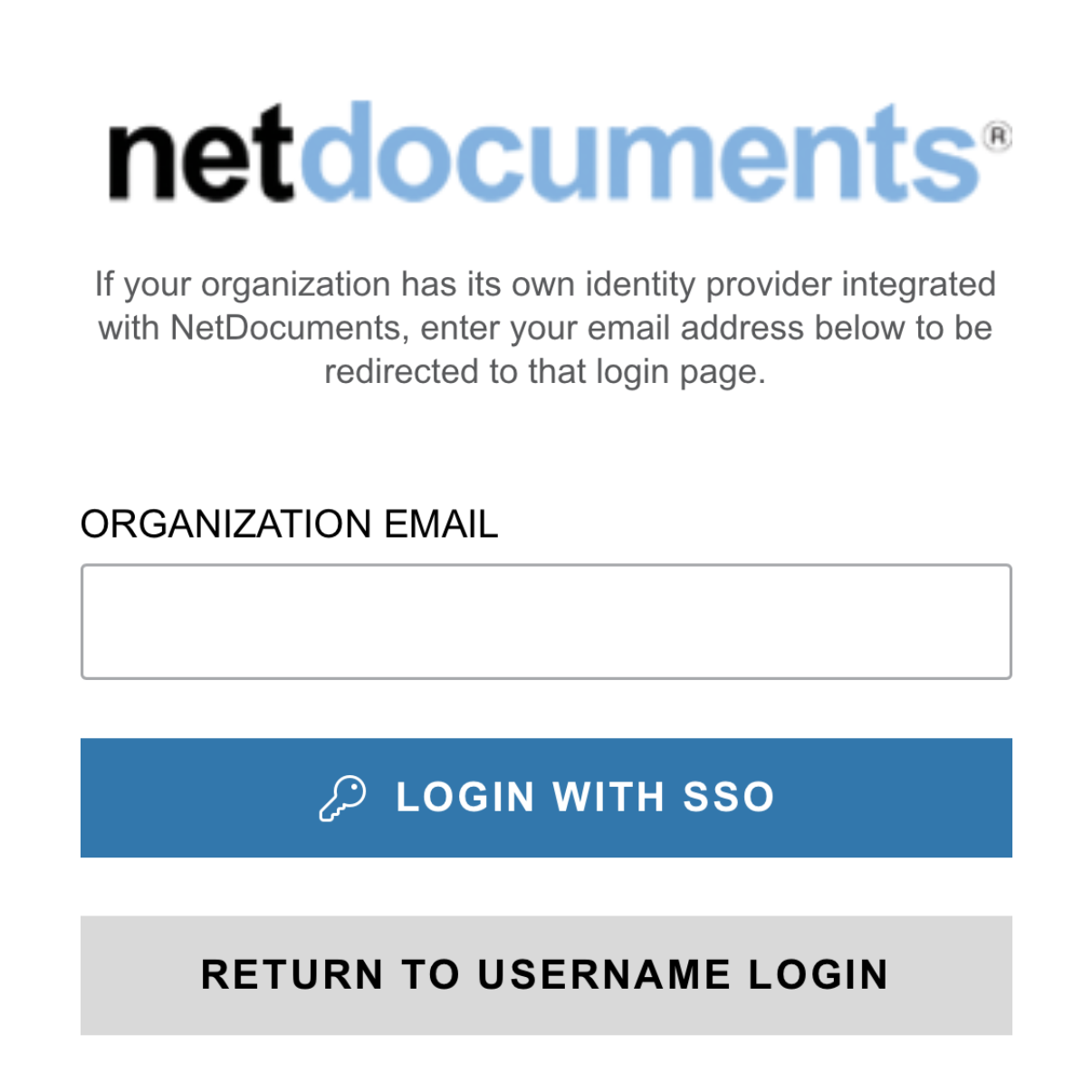
If your firm uses Single Sign-On, follow these steps to log in to the mobile app:
- Open the NetDocuments app.
- On the login screen, tap the Continue with SSO button.
- On the next page, enter your firm email address.
- You will be redirected to your SSO provider’s login page. For most firms, this will be a Microsoft 365 sign-in screen. Enter your M365 credentials as you normally would.
- If your firm has MFA enabled on M365, complete the verification prompt.
- Once authenticated, you will be taken to the NetDocuments home screen and the app is ready to use.
Offline Access #
One of the most useful mobile features is offline access. If you know you will be somewhere without reliable internet (a courthouse, a flight, a remote location), you can mark specific documents for offline availability. The app downloads them to your device so you can view and work with them without a connection. Any changes sync back to NetDocuments when you reconnect.
Security #
The mobile app maintains the same security standards as the web and desktop versions. Your firm administrator can enforce policies such as requiring a PIN or biometric authentication to open the app, and can remotely wipe NetDocuments data from a lost or stolen device.
Need help getting your team up and running on NetDocuments? HFSM Technology provides implementation, training, and ongoing support for Canadian law firms. Visit hfsm.ca/contact to learn more.


