
Category: Mobile Access
ndKeyboard is a mobile keyboard built into the NetDocuments app that lets you search your document repository and insert a link to any document directly into whatever app you are using on your phone. Whether you are composing an email in Outlook, sending a text message, chatting in Microsoft Teams, or using any other app that accepts keyboard input, ndKeyboard lets you share a NetDocuments document link without switching apps or copying and pasting anything manually.
It is available on both iOS and Android.
What ndKeyboard Does #
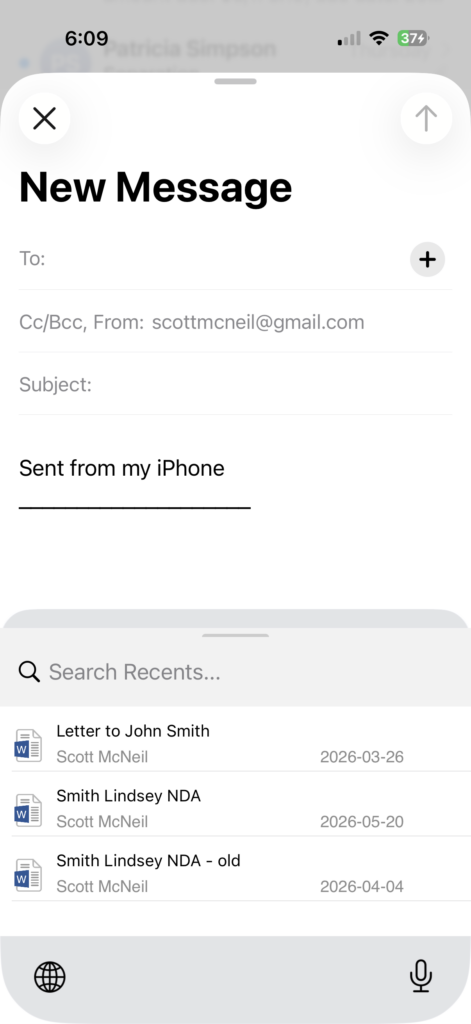
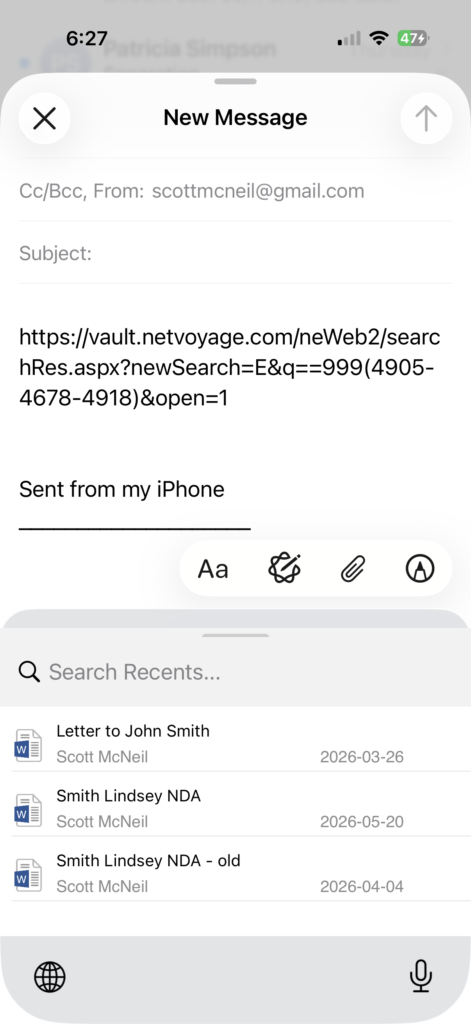
ndKeyboard works as a custom keyboard on your phone. When you switch to it, your regular keyboard is temporarily replaced with a NetDocuments search interface. From there you can search for any document in your repository or browse your recent documents. When you tap on a document, ndKeyboard inserts a link to that document directly into your message or email.
The recipient can click the link to access the document in NetDocuments, subject to the same security permissions that apply to any shared NetDocuments content. ndKeyboard does not attach or send the actual file. It inserts a secure link back to the document in your NetDocuments repository.
Why It Matters #
Lawyers and legal professionals frequently need to share documents while away from their desks. A client asks for a copy of an agreement over email while you are between meetings. A colleague messages you asking for a reference to a file. Without ndKeyboard, you would need to open the NetDocuments app, find the document, copy the link, switch back to your message, and paste it. ndKeyboard eliminates all of those steps by letting you search and insert the link right from the keyboard without ever leaving the app you are in.
Setting Up ndKeyboard on iPhone #
ndKeyboard is included as part of the NetDocuments mobile app (ndiOS). You need to install the app first, then enable the keyboard and grant it the required permissions.
Step 1: Install the NetDocuments App #
- Download the NetDocuments app from the App Store if you do not already have it installed.
- Open the app and log in with your NetDocuments credentials or your firm’s SSO.
- When prompted with the NetDocuments Login Authorization screen asking ndiOS to connect to your account, tap Allow.
Step 2: Add the Keyboard #
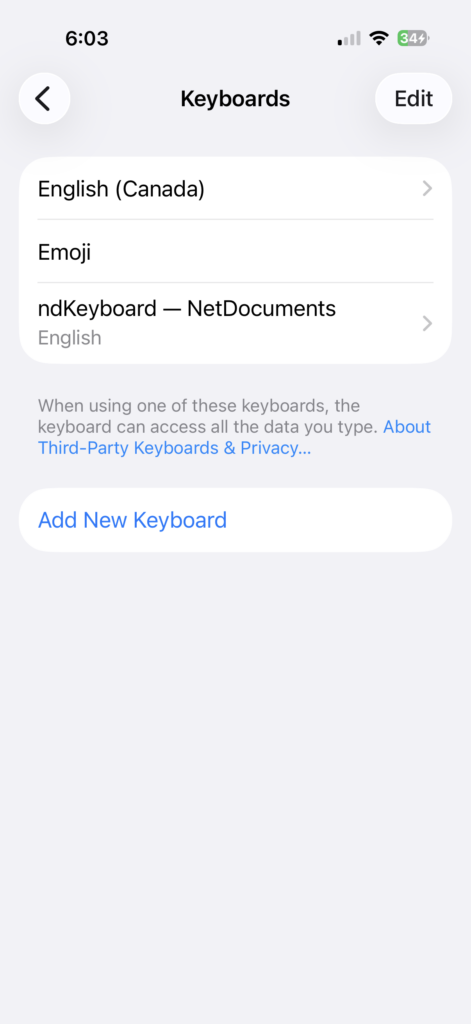
- On your iPhone, go to Settings > General > Keyboard > Keyboards.
- Tap Add New Keyboard.
- Select ndKeyboard — NetDocuments from the list of third-party keyboards.
Step 3: Allow Full Access #
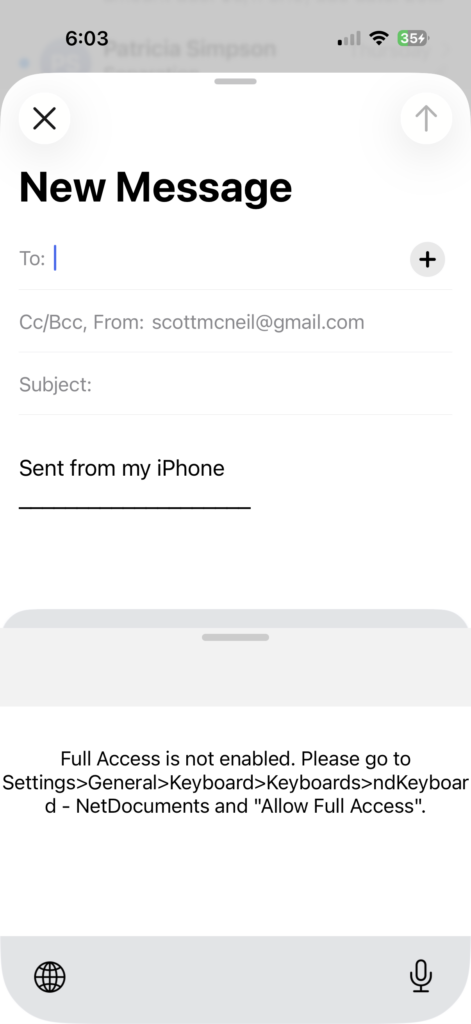
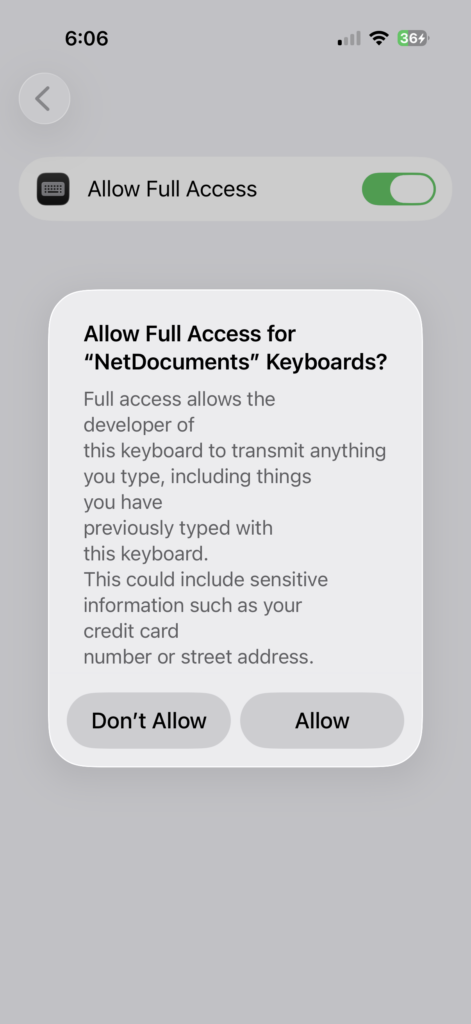
This step is required. Without Full Access, ndKeyboard cannot connect to your NetDocuments account.
- In your keyboard list, tap on ndKeyboard — NetDocuments.
- Toggle Allow Full Access to on.
- Your phone will display a privacy warning. This is a standard iOS message for all third-party keyboards. Full Access is required so ndKeyboard can communicate with your NetDocuments account to search for and retrieve document links. Tap Allow.
If you skip this step, ndKeyboard will display a message telling you to enable Full Access when you try to use it: “Full Access is not enabled. Please go to Settings > General > Keyboard > Keyboards > ndKeyboard – NetDocuments and Allow Full Access.”
ndKeyboard is now installed and ready to use.
Using ndKeyboard #
Once ndKeyboard is set up, you can switch to it from any app where the keyboard appears.
- Open any app where you would normally type (Mail, Messages, Teams, Outlook, Gmail, etc.).
- Tap the globe icon on your keyboard to switch between keyboards. Select ndKeyboard.
- The NetDocuments keyboard appears in place of your regular keyboard, showing a search bar and a list of your recently accessed documents.
- Search for a document by name, or scroll through your recent documents.
- Tap on a document to insert its link directly into your message.
The link is inserted right where your cursor is, just like typing text. You can then switch back to your regular keyboard by tapping the globe icon again and continue composing your message.
Setting Up ndKeyboard on Android #
ndKeyboard is also available on Android as part of the NetDocuments mobile app. The setup process is similar:
- Install the NetDocuments app from the Google Play Store and log in.
- Go to Settings > System > Languages & input > On-screen keyboard > Manage keyboards (the exact path may vary by device).
- Enable ndKeyboard.
- When composing a message, use the keyboard switcher to select ndKeyboard.
How ndKeyboard Handles Links #
ndKeyboard inserts standard internal NetDocuments links. It is important to understand who can and cannot access these links.
- Internal users: When you share a document link with a colleague at your firm who has access to the same workspace, the link works as expected. They click it and open the document in NetDocuments. This is the primary use case for ndKeyboard.
- External users with NetDocuments access: If your firm uses CollabSpaces to share documents with external parties such as clients, and those clients have been set up as external users with active access to the CollabSpace, they can also open ndKeyboard links. The link will work as long as the recipient is logged into NetDocuments as an external user with permission to access that specific space.
- External users without NetDocuments access: If the recipient does not have a NetDocuments login or has not been granted access to the workspace or CollabSpace where the document lives, the link will not work. They will see an access denied error. ndKeyboard does not create public sharing links, password-protected links, or links with expiration dates.
Because of this, ndKeyboard is primarily a tool for sharing documents internally within your firm or with external users who have already been set up with NetDocuments access. It is not a tool for sending documents to people outside the system. For sharing documents with external parties who do not have NetDocuments access, use the sharing and CollabSpace features in the NetDocuments web interface where you can configure appropriate access and permissions.
Things to Know #
- You must be logged into the NetDocuments app. ndKeyboard connects through the NetDocuments mobile app on your phone. If you are logged out of the app, the keyboard will not be able to search or display documents.
- Full Access is required on iPhone. Without Full Access enabled in your keyboard settings, ndKeyboard cannot function. This is a one-time setup step.
- Security permissions apply. ndKeyboard only shows documents you have permission to access in NetDocuments. You cannot search for or share documents outside your access rights.
- It works with virtually any app. Any app that uses the standard keyboard for text input will work with ndKeyboard. This includes email apps, messaging apps, note-taking apps, and more.
- It does not replace your regular keyboard. ndKeyboard is an additional keyboard you switch to when you need to access NetDocuments. Your regular keyboard remains available and you can switch between them using the globe icon.
Need help getting your team set up with NetDocuments on mobile? HFSM Technology provides implementation, training, and ongoing support for Canadian law firms. Visit hfsm.ca/contact to learn more.


