
Category: Getting Started with NetDocuments
Why Your Location Setting Matters #
When your firm’s administrator sets up NetDocuments, they select the datacenter region where your firm’s data will be stored. For Canadian law firms using the NetDocuments Canada service, this means your documents, emails, and metadata are stored in NetDocuments’ Canadian datacenters rather than in the US or another region. This matters for regulatory compliance, data sovereignty, and meeting client expectations around where their confidential information resides.
NetDocuments operates dedicated datacenters in Canada as part of its global infrastructure. Having your region set to Canada ensures everything stays within Canadian borders.
What You Need #
- You will need to be logged into NetDocuments in your web browser
- ndOffice installed on your computer (the desktop integration for Word, Excel, and Outlook)
Setting Your Region in ndOffice #
To confirm or change your region in ndOffice, follow these steps:
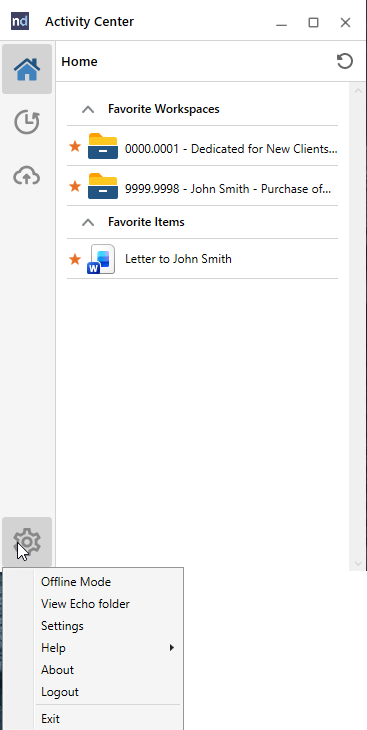
- Locate ndOffice on your computer. You can find it in the Windows system tray (bottom right of your taskbar), or search for “ndOffice” using the Windows button.
- Click the gear icon to open the menu, then click Settings.
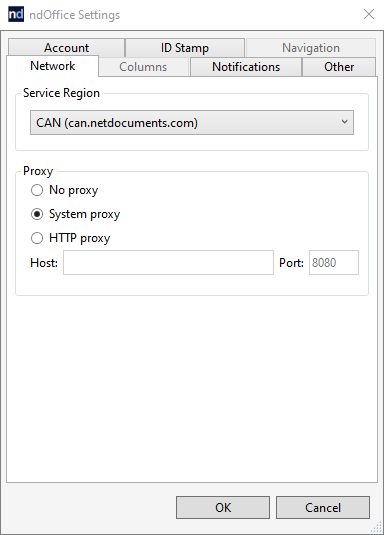
- Click the Network tab.
- In the Service Region dropdown, select CAN (can.netdocuments.com) for Canada.
- Click OK to save.
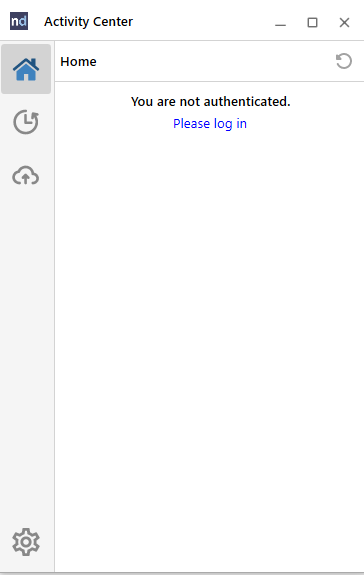
- After changing the region, ndOffice will display a Please log in prompt. If you were already logged in, you may need to click Settings > Logout first, then click Log in.
- When you click Log in, ndOffice will automatically launch a web page in your browser. If you are already logged into NetDocuments in your browser, it will ask you to Allow the connection. Click Allow.
- Once connected, you can close the page that opened or click Go to Home Page.
ndOffice is now connected to the correct Canadian region and ready to use.
Common Questions #
What if I don’t see my region set to Canada? #
If your region is not set to Canada, ndOffice will most likely connect to the US NetDocuments login page. This will not work because your account is provisioned for another region. Follow the steps above to change the Service Region dropdown to CAN (can.netdocuments.com) and log in again.
Can I have some documents stored in Canada and others in a different region? #
Yes. NetDocuments offers a feature called ndFlexStore that allows firms to define storage locations. This is useful for firms with international clients or cross-border matters. Talk to your NetDocuments account manager or implementation partner for details.
Is my data automatically backed up within Canada? #
NetDocuments replicates data across its datacenter infrastructure for redundancy. For Canadian repositories, replication stays within the Canadian datacenter environment.
Need help configuring NetDocuments for your Canadian law firm? HFSM Technology provides implementation, training, and ongoing support. Visit hfsm.ca/contact to learn more.


