
Category: ndOffice and Desktop Integration
ndOffice is NetDocuments’ desktop integration tool that connects Microsoft Office applications (Word, Excel, PowerPoint, and Outlook) directly to your NetDocuments repository. It is what makes NetDocuments feel like a natural extension of the tools your team already uses every day.
What ndOffice Does #
Without ndOffice, you would need to download documents from the NetDocuments web interface, edit them locally, and then upload them again. ndOffice eliminates that friction by letting you:
- Open documents directly from NetDocuments into Word, Excel, or PowerPoint
- Save documents back to NetDocuments from within Office applications
- Check out and check in documents to prevent conflicts when multiple people are working on the same file
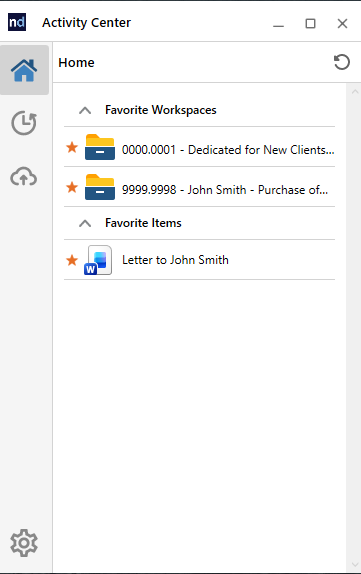
- Access recent documents from a NetDocuments panel within Office
Why It Matters #
For lawyers and staff who spend most of their day in Microsoft Word or Outlook, ndOffice removes the barrier between their daily tools and the document management system. There is no need to switch to a browser, no need to manually upload or download, and no risk of saving a document to the wrong location on a local drive.
Installation #
ndOffice is a small desktop application that your firm administrator or IT department typically installs during the NetDocuments rollout. It runs quietly in the background and adds a NetDocuments tab to your Office ribbon. Most users will have ndOffice installed for them as part of the firm’s deployment process.
If you have administrator rights on your computer and need to install ndOffice yourself, you can download the installer directly from the NetDocuments support site:
First Login and Region Settings #
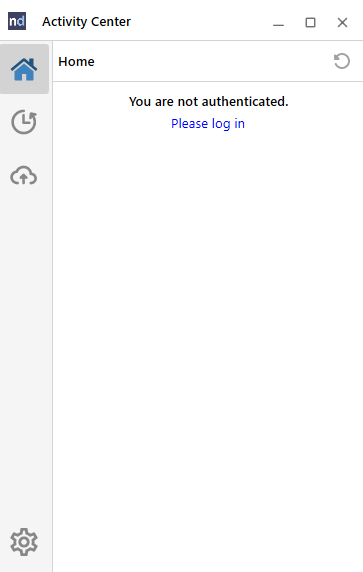
After ndOffice is installed, you will need to log in. The first time you open ndOffice, it will prompt you to sign in with your NetDocuments credentials or through your firm’s Single Sign-On (SSO).
For Canadian firms, it is important to make sure your ndOffice region is set to Canada before logging in. This ensures ndOffice connects to the correct Canadian datacenter. For a step by step walkthrough, see our guide: Setting Your NetDocuments Location to Canada
Compatibility #
Windows: ndOffice is fully supported on Windows and provides the broadest feature set. It works with Microsoft Office 2016 and later, as well as Microsoft 365.
Mac: Mac users have access to ndClick, which is NetDocuments’ equivalent desktop integration for macOS. ndClick provides similar functionality to ndOffice, allowing Mac users to open and save documents directly from Office applications.
The Future: M365 Add-ins #
NetDocuments is actively developing native Microsoft 365 add-ins for Word, Excel, Outlook, and other Office applications. These M365 add-ins are designed to provide full NetDocuments integration, just like the traditional desktop COM add-ins, but built on Microsoft’s modern add-in platform. Some of these add-ins are already available, and others are on the way.
For now, most users continue to use the traditional ndOffice desktop integration for their day to day work, and it remains fully supported. As the M365 add-ins mature and firms begin rolling them out, they will gradually become the standard way to work with NetDocuments inside Office applications.
Need help getting your team up and running on NetDocuments? HFSM Technology provides implementation, training, and ongoing support for Canadian law firms. Visit hfsm.ca/contact to learn more.


Very good website you have here but I was wondering if you knew of any user discussion forums that cover the
same topics discussed in this article? I’d really like to be a part
of group where I can get feedback from other knowledgeable individuals that share the same interest.
If you have any suggestions, please let me know.
Cheers!
Thanks so much for the kind words! I’m not aware of a forum that is active and third party to NetDocuments. Great idea! I’ll look into seeing if it’s something we can offer. Again thanks for the kind words and let us know if we can help with anything! Scott McNeil