
Category: ndOffice and Desktop Integration
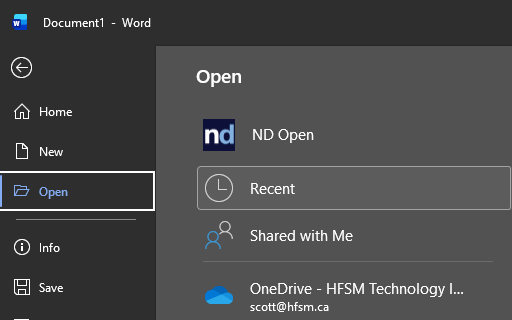
There are two main ways to open a NetDocuments document for editing in Microsoft Word, Excel, or PowerPoint. You can open directly from within the Office application using File > Open, or you can click on a document in the NetDocuments web interface and have it launch in the desktop application automatically. Both methods rely on ndOffice being installed and connected on your PC.
Method 1: Opening from Within Office (File > Open) #
If you are already working in Word, Excel, or PowerPoint, you can open a document from NetDocuments without leaving the application.
- Click File > Open.
- In the Open dialog, you will see your NetDocuments cabinets and workspaces listed alongside your local drives and OneDrive locations.
- Navigate to the workspace and folder containing the document you want to open.
- Select the document and click Open.
The document opens in your Office application and is automatically checked out to you. You can make your changes, save with Ctrl+S, and when you close the document, ndOffice checks it back in so other users can access it.
This method is especially useful when you know exactly where the document lives in NetDocuments and want to get to it quickly without opening a browser.
Method 2: Opening from the NetDocuments Web Interface #
The other way to open a document is directly from the NetDocuments web interface in your browser. This is the most common method for many users, especially when browsing through workspaces or working from search results.
- Log into NetDocuments in your web browser.
- Navigate to the workspace or folder containing the document, or use the search bar to find it.
- Click on the document name.
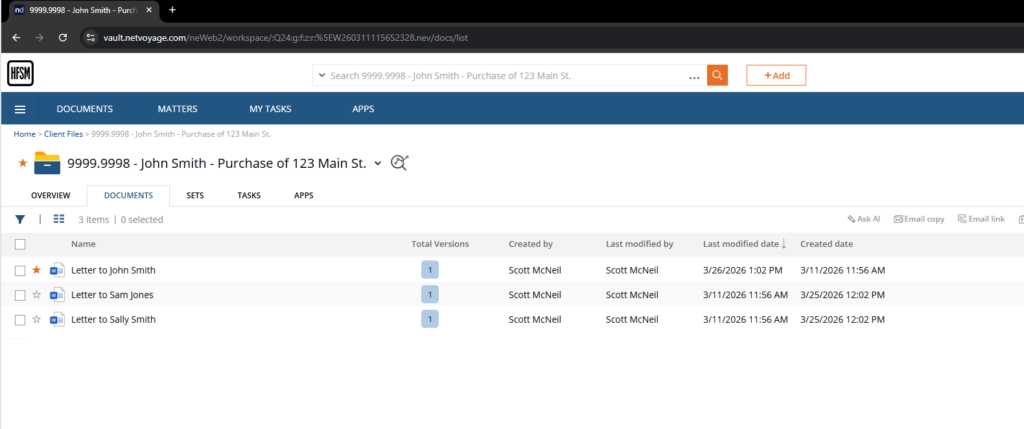
If ndOffice is installed and running, the document will automatically open in the corresponding desktop application. A Word document opens in Word, a spreadsheet opens in Excel, and a presentation opens in PowerPoint. The document is checked out to you just as it would be if you opened it from within Office.
From there, you can edit the document, save your changes, and close it. ndOffice handles the check-in automatically when you close the file.
If ndOffice is not running: Clicking a document in the web interface may open it in the NetDocuments browser-based viewer instead, or prompt you to download it. If this happens, check that ndOffice is running in your Windows system tray (bottom right of your taskbar) and that you are logged in. See our guide on What Is ndOffice and Why You Need It for setup details.
What Happens When You Open a Document #
Regardless of which method you use, the same process occurs behind the scenes:
- Check-out: The document is checked out to you automatically. Other users will see that you have the document checked out and cannot edit it until you close it and check it back in.
- Local working copy: ndOffice downloads a temporary working copy of the document to your computer so you can edit it in your desktop application. All changes are synced back to NetDocuments when you save.
- Automatic check-in: When you close the document, ndOffice checks it back in and releases the lock. Your changes are saved to NetDocuments and the temporary local copy is cleaned up.
Opening a Document Someone Else Has Checked Out #
If another user already has the document checked out, you can still open it, but only as a read-only copy. NetDocuments will let you know who has the document checked out. You will be able to view the contents but you will not be able to save changes until the other user closes it and checks it back in.
If you need to edit the document urgently and the other user is unavailable, your firm’s NetDocuments administrator can force a check-in to release the lock. This should only be done when necessary, as the other user may lose unsaved changes.
Recently Opened Documents #
NetDocuments keeps track of your recently opened documents. You can access them in two ways:
- NetDocuments Home Page: Your Home Page in the web interface shows a list of recently accessed documents, making it easy to jump back into something you were working on.
- Office Recent Documents: Documents opened through ndOffice also appear in your Office application’s recent files list (File > Open > Recent). This means you can reopen a NetDocuments document from Word’s recent files without navigating back through the folder structure.
Tips for Opening Documents #
- Make sure ndOffice is running. If documents are not opening in your desktop application when you click them in the browser, check that ndOffice is running and logged in. Look for the ndOffice icon in your Windows system tray.
- Use search to find documents faster. Rather than navigating through folders, use the NetDocuments search bar in the web interface to find documents by name, content, or profile information. Once you find the document, click it to open.
- Check the region setting. If ndOffice is not connecting properly, make sure your region is set to Canada. See our guide on Setting Your NetDocuments Location to Canada for instructions.
- Avoid downloading and re-uploading. If you download a document to your desktop and edit it locally, you lose the connection to NetDocuments. The edited version will not be tracked in the version history. Always open documents through ndOffice so changes are managed by the system.
Need help getting your team up and running on NetDocuments? HFSM Technology provides implementation, training, and ongoing support for Canadian law firms. Visit hfsm.ca/contact to learn more.


